
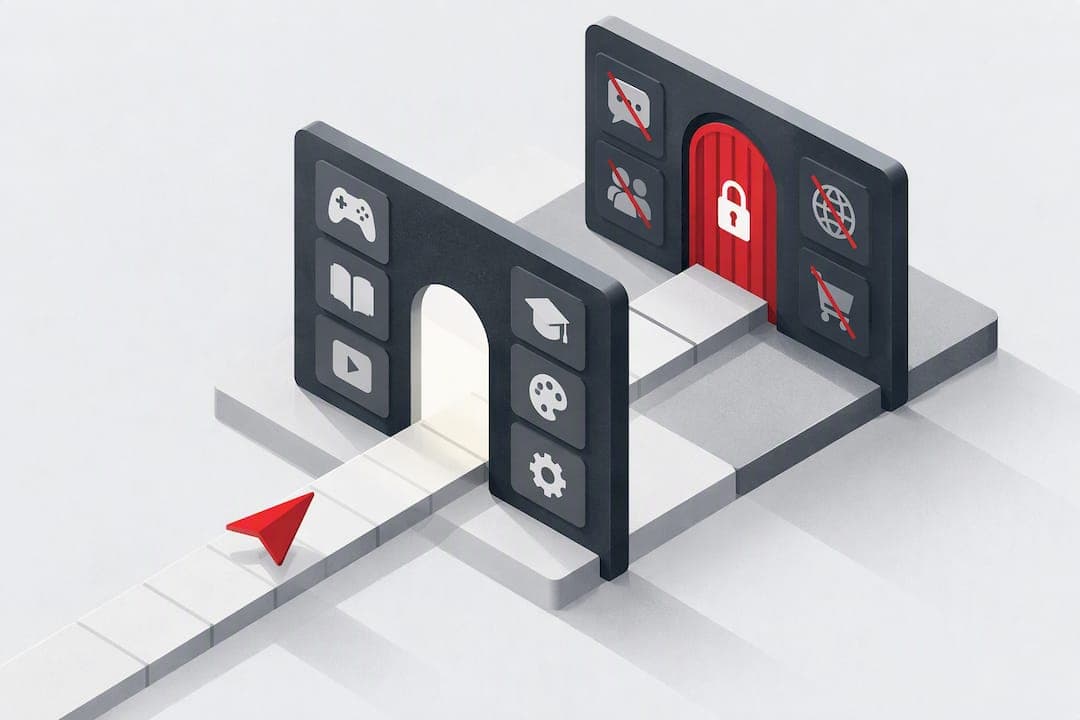
Yes, Android's built-in parental controls handle most of what parents need, and you should start there before installing anything else. Digital Wellbeing manages screen time and per-app limits, while Google Family Link covers content filters and account-level supervision, and neither shares data with outside companies. Save third-party apps for specific gaps like social media monitoring, but check the permissions and privacy policy first.
TL;DR:
- Digital Wellbeing provides quick, device-based screen limits but cannot restrict system apps or enforce content filtering beyond timers.
- Family Link offers comprehensive account supervision, including app approval, content filtering, and remote device locking, suitable for younger children.
- Third-party apps may add features like social media monitoring but pose privacy risks due to excessive permissions and unencrypted data sharing.
- Setting up Digital Wellbeing and Family Link is straightforward, but limits can take several minutes to apply and should be tested for effectiveness.
- WalkBlock focuses on preventing distracted walking using local motion detection, working alongside existing controls without GPS tracking.
Table of Contents
- Comparing Android's Built-In Controls and Third-Party Apps
- How Do You Set Screen Time Limits on Android?
- What Does Google Family Link Actually Control?
- Are Third-Party Parental Control Apps Worth the Privacy Trade-Off?
- Choosing and Configuring the Right Setup
- WalkBlock: Privacy-Minded Blocking Built for Movement
- A Note on Balancing Safety and Trust
- Where to Verify These Setup Steps
- Sources
- FAQ
Comparing Android's Built-In Controls and Third-Party Apps
Android gives you three practical paths, and each one fits a different situation.
Digital Wellbeing is the on-device toolkit built into every modern Android phone. It sets app timers and PIN-protected limits directly on the child's device, with no account linking required. It's the fastest option when your child already has their own phone and you trust them to keep the PIN honest.
Family Link supervises a child's Google Account across devices. It adds remote app approvals, purchase controls, and Play Store content filters that Digital Wellbeing alone can't touch. This is the better call for younger kids or when you want changes to apply without physically holding their phone.
Third-party apps fill narrower gaps: monitoring texts, scanning social apps, or watching multiple kids from one dashboard. They add real capability, but also real privacy exposure, so they're worth the trade-off only when a specific need isn't covered elsewhere.
- Digital Wellbeing: fastest setup, fully local, weakest on content filtering
- Family Link: best for younger children and multi-device families, requires linked accounts
- Third-party apps: most features, but the highest privacy and permission risk
How Do You Set Screen Time Limits on Android?
Digital Wellbeing lives inside every Android phone's settings menu, and setting it up takes about five minutes.
- Open Settings, then tap Digital Wellbeing & parental controls.
- Tap Set up parental controls if this is a family device, or skip straight to Ways to disconnect for self-managed limits.
- Select App timers, choose an app, and set a daily limit in minutes.
- Tap Bedtime mode or Focus mode to schedule downtime, like blocking apps automatically at 9 PM on school nights.
- When prompted, set a 4-digit PIN. This is what stops your child from raising their own limit the moment the timer runs out.
The PIN only protects the limits themselves. It won't stop someone from uninstalling the whole app or wiping the phone, so it's a speed bump, not a lock.
A few limitations are worth knowing upfront. System apps like Phone or Messages generally can't be restricted, and some manufacturer-installed apps are exempt by default. Blocking also isn't instant: changes can take up to five minutes to apply, or longer if the device needs to reconnect to the internet first.
Pro Tip: Test every limit yourself right after setting it. Open the restricted app, confirm it locks at the right time, and check that maps or calling apps stay exempt. A limit that silently fails is worse than no limit at all.

What Does Google Family Link Actually Control?
Family Link supervises your child's Google Account rather than just the device, which is why it works even when you're not in the same room.
It can approve or block app downloads, set daily screen time limits, lock the device remotely at bedtime, and filter what shows up in the Play Store based on age ratings. On compatible Android and Chromebook devices, it also supports location features tied to the supervised account.
Setup requires a few things to line up. You need your own Google Account, a supervised Google Account for your child, and both accounts registered in the same country. The child's device also has to run a compatible Android version, since older phones may not support the full feature set.
Setup itself is short:
- Download Family Link on your phone and your child's device.
- Sign in as the parent, then create or link your child's supervised account.
- Turn on app approvals, screen time limits, and content filters from the dashboard.
Keep in mind that Family Link can't restrict pre-installed system apps any more than Digital Wellbeing can, and blocking changes still take a few minutes to sync once the child's device is online.
Are Third-Party Parental Control Apps Worth the Privacy Trade-Off?
Third-party apps add features Android's built-in tools don't: social media monitoring, cross-device dashboards that track multiple kids from one login, text and call scanning, and remote freeze or uninstall protection.
That extra visibility comes with a documented cost. An academic study of parental control apps examined 46 popular apps and found they requested more dangerous permissions than typical apps, with 11% transmitting personal data in the clear and 72% sharing data with third parties without clear disclosure. Apps installed outside the Play Store carry even higher risk, since sideloaded versions often skip privacy notices entirely and some try to dodge Play Protect scanning.
11% of studied apps sent data unencrypted, and 72% shared it with third parties without clear notice. That's the trade-off you're accepting for extra features, not a hypothetical one.
If a third-party app genuinely fills a gap for your family, a few habits limit the damage:
- Install only from the Play Store, never a sideloaded APK.
- Read the permissions list before granting anything, and question requests unrelated to the app's stated purpose.
- Check the privacy policy for third-party data sharing before you buy a subscription.
Choosing and Configuring the Right Setup
Before installing anything, work through what your child actually needs versus what sounds useful in an app store listing.
- Match the tool to your child's age and tech skill. A ten-year-old rarely needs social monitoring, but a teenager on five apps might.
- Decide how visible you want the monitoring to be. Research on family oversight tools found that transparent, discussed monitoring gets far less pushback than hidden tracking.
- List the specific features you need. If it's just screen time, Digital Wellbeing already does the job.
- Check whether you're managing one device or several. Multiple kids on different phones point toward Family Link's account-based approach.
- Test the setup before trusting it. Confirm blocking actually triggers, that maps and calling stay accessible, and that a PIN protects the settings from being changed.
Watch for red flags before you commit to any app: requests for permissions with no clear connection to its function, a vague or missing privacy policy, installation files that bypass the Play Store, or marketing that emphasizes how well it hides from the child.
Pro Tip: If an app's own website brags about being undetectable, treat that as a warning label, not a feature.
WalkBlock: Privacy-Minded Blocking Built for Movement
Most parental controls solve for screen time in general. WalkBlock solves a narrower, more physical problem: kids walking into traffic because they're staring at a phone instead of the crosswalk.

WalkBlock detects when a child is walking and blocks the distracting apps you've chosen, using on-device movement recognition rather than continuous GPS. There's no location map to maintain and no constant tracking feed to worry about, just local processing that reacts to motion. Settings stay behind a PIN, and maps and phone calls stay accessible the whole time, so your child can still get directions or call you if something goes wrong.
Run it against the checklist from the last section: age-appropriate, transparent by design, and configurable down to which apps get blocked and when. If movement-triggered blocking fits a gap your current setup doesn't cover, check the full feature list and see whether it fits how your family actually walks through the world.
A Note on Balancing Safety and Trust
Collaborative oversight tends to work better than stealth monitoring, and that's not just a nice idea. Research on family tech tools found that kids accept visible, discussed monitoring far more readily than tracking they discover later.
Three habits keep this workable: explain the rules before you turn them on, loosen limits as your child earns trust, and review settings together every few months instead of silently adjusting them. Combine built-in tools with a targeted third-party feature only when there's a real gap, not because more monitoring feels safer by default.
— Andrejs
Where to Verify These Setup Steps
Check these directly if you want to confirm settings before you make changes:
- Set app timers and parental controls on Android for Digital Wellbeing steps
- About Family Link for supervised account setup
- A privacy study of mobile parental control apps for the permissions research
- PCMag's parental control software picks for third-party buyer guidance
Sources
- Set app timers and parental controls on Android
- A privacy study of mobile parental control apps (Feal et al.)
- About Family Link
- The best parental control software (PCMag)
FAQ
Can I Monitor My Child's Android From My Own Android Phone?
Yes. Family Link lets you manage your child's supervised account, screen time, and app approvals from your own phone, and changes sync once their device connects to the internet. Digital Wellbeing settings, by contrast, are local to the child's device and don't sync to yours.
Does Android Have Built-In Parental Controls?
Yes. Digital Wellbeing handles screen time, app timers, and PIN-protected limits directly on the device, while Family Link adds account-level supervision, content filters, and remote app approvals.
How Can I Tell if My Phone Is Under Parental Control on Android?
Check Settings under Digital Wellbeing & parental controls for active app timers or a linked supervised account, and check the Family Link app for a visible parent connection. A transparent setup should show these settings openly rather than hide them.
Does Android Have a Child Mode?
Not a single dedicated mode, but Family Link functions similarly by creating a supervised account with age-appropriate content filters and app restrictions. Combining that with Digital Wellbeing's screen time limits covers most of what a dedicated child mode would offer.
Does WalkBlock Replace Family Link or Digital Wellbeing?
No, it complements them. WalkBlock focuses specifically on blocking distracting apps while a child is walking, using local movement detection instead of GPS tracking, and it's meant to sit alongside your existing screen time setup rather than replace it. Pricing details are available on WalkBlock's site.