
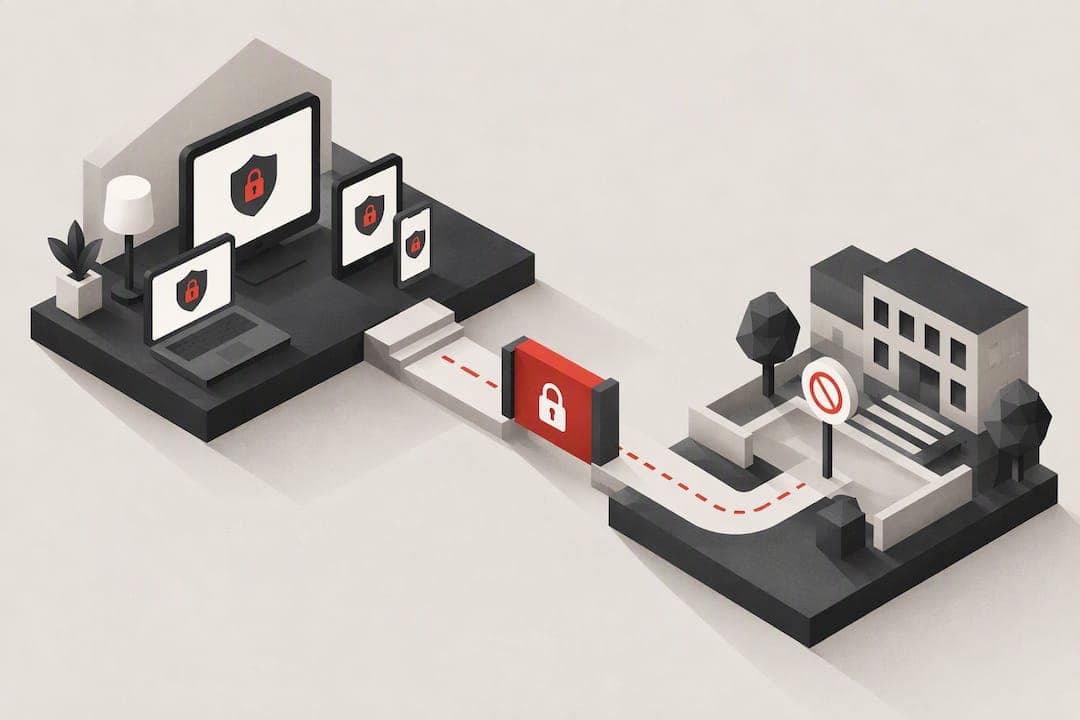
A parental-control PIN locks the settings that manage app use, content ratings, and purchases, keeping a child from changing restrictions you set. This guide walks through setting and recovering that PIN on Android and Google Play, on iPhone and iPad, and on common TVs and consoles, plus how to troubleshoot when a control stops working.
TL;DR:
- Most parental control PINs are device-specific and not interchangeable, so mixing them can lock you out of important settings.
- Establishing recovery options in advance is essential, as it prevents the need for factory resets if a PIN is forgotten.
- Apple’s Screen Time passcode is separate from the device passcode and can only be reset through the family organizer’s device if recovery was enabled.
- Streaming devices split restrictions into separate Locks and Purchase PINs, requiring contacting support for resets if forgotten.
- Regularly updating device software and reapplying restrictions after OS updates help maintain effective parental controls.
Table of Contents
- What to expect by device type
- Set a parental controls PIN on Android and lock Google Play content
- Create a Screen Time passcode on iPhone and iPad
- PINs for TVs, consoles, and streaming boxes
- If you forgot the PIN: recovery steps by platform
- Why parental controls sometimes stop working
- Best practices for choosing and protecting your PIN
- How WalkBlock complements PIN-protected parental controls
- Turning settings into habits
- Try WalkBlock for movement-aware app blocking
- Official vendor help pages and authoritative guides
- Sources
- FAQ
What to expect by device type
Not every "parental PIN" does the same job, and mixing them up is the fastest way to lock yourself out. Android has a device-level parental controls PIN, Google Play has its own content restriction PIN, Apple uses a Screen Time passcode, and most TVs and consoles split their protection into separate locks and purchase codes.
- Device-level PIN (Android): protects the parental controls menu itself and often supports a recovery account.
- Play Store PIN: gates app downloads, in-app purchases, and content ratings inside Google Play.
- Screen Time passcode (Apple): separate from your device unlock code and controls app limits, downtime, and content restrictions.
- TV or console PIN: usually split into a Locks PIN for content and channels and a Purchase PIN for buying, each commonly four digits.
Recovery options exist for most of these, but only if you set them up in advance. Android and Apple both offer an account-based recovery path; TV and console systems more often require calling support with a serial number.
Set a parental controls PIN on Android and lock Google Play content
Android device controls and Google Play content restrictions are increasingly tied together, so it helps to set both at once.
- Open Settings, go to Parental controls, and tap Set up parental controls, then create a PIN when prompted (Android requires a PIN of at least four digits and asks you to confirm it before saving).
- In the Google Play app, tap your profile icon, go to Settings, select Family, then Content restrictions.
- Tap Go to parental controls and follow the prompt to set your PIN, this typically reuses or links to the same PIN as your Android device controls.
- Use the content restrictions screen to set app, game, movie, and content ratings, each of which the PIN now protects from changes.
- Add a recovery account under parental controls settings and confirm it, since a validated recovery account lets you reset a forgotten PIN without wiping the device.
According to Android Help, device-level parental controls require setting a PIN and support adding a recovery account so you can reset access later without a factory reset. Google's own guidance on Play Store content restrictions confirms that Play PINs are now integrated with Android's parental controls system, and that new setups default to the Android-level PIN.
That integration matters because clearing Play Store app data, a common troubleshooting step, can reset Play-specific restrictions even when the Android device PIN stays intact. Knowing which layer you are resetting keeps you from accidentally undoing more than intended.

Pro Tip: Validate your recovery account the same day you set the PIN, not weeks later when you actually need it.
Google's support documentation treats recovery account setup as essential, not optional, warning that skipping it can force a full factory reset if the PIN is later forgotten, wiping the device's data in the process.
Create a Screen Time passcode on iPhone and iPad
Apple's Screen Time passcode is a separate credential from the passcode you use to unlock the device, and treating them as interchangeable is one of the most common parent mistakes.
- On the child's device, or from your own device if using Family Sharing, open Settings and tap Screen Time.
- Tap Lock Screen Time Settings, or, if managing a family member remotely, select their name first, then tap Manage Screen Time followed by Lock Screen Time Settings.
- Enter a four-digit passcode and confirm it: this code, not the device unlock code, now protects app limits, downtime schedules, and content restrictions.
- During setup, enable Screen Time Passcode Recovery when prompted, which links passcode reset ability to your Apple Account.
- If you ever forget the passcode, open Screen Time on the family organizer's own device, not the child's, and choose the option to reset it there.
That last step trips up a lot of parents. According to Apple Support, the Screen Time passcode is distinct from the device passcode, and if forgotten, it can only be reset by the family organizer using their own device, and only if Passcode Recovery was configured beforehand. A related Apple Support page notes that many parents mistakenly try to reset a child's passcode directly on the child's device, which does not work and can create more confusion than it resolves.
Pro Tip: Keep your Apple Account credentials current and, where available, enable Share Across Devices so your Screen Time passcode stays in sync across every device you manage.
PINs for TVs, consoles, and streaming boxes
Streaming boxes, smart TVs, and game consoles tend to split parental protection into two separate PINs rather than one unified code.
- Locks PIN: restricts content by rating, specific titles, or channel, often reused across the whole household profile.
- Purchase PIN: gates any spending, rentals, or in-app purchases, and can be set independently of the Locks PIN.
- Both are commonly four digits and are entered through a settings or parental controls menu on the device itself.
- App-level locks differ from profile-level locks: locking one streaming app does not automatically restrict others on the same box.
Xfinity's support documentation describes this two-PIN structure directly, noting that Locks and Purchase PINs serve different functions even though both are typically four digits.
If you forget a console or TV PIN, expect to contact support rather than reset it yourself. Consoles like Nintendo Switch require a master key process: if the console was never registered with the manufacturer's parental controls app, you will need the device's inquiry number from its Help menu before support can issue a reset code.
If you forgot the PIN: recovery steps by platform
Losing a parental PIN is stressful, but a factory reset should be the last option, not the first.
- On Android, open parental controls and select the recovery account option if one was configured. This resets the PIN without erasing data, per Android Help.
- If no recovery account exists, clearing the Play Store app's data can reset Play-specific restrictions, though this does not touch the Android device-level PIN.
- On iPhone or iPad, have the family organizer open Screen Time on their own device and use the reset option there, available only if Passcode Recovery was set up in advance according to Apple's guidance.
- For a console or TV, gather the device's serial number or inquiry number before calling support, since most master-key processes require it to verify ownership.
Vendor guidance consistently frames recovery setup as preventive, not optional: Apple explicitly recommends enabling Passcode Recovery during initial setup specifically to avoid the need for a full device reset later.
Keep a simple checklist: confirm which account is signed in, try the platform's built-in recovery path first, and only consider a factory reset once support has confirmed no other option exists. Write down recovery credentials somewhere secure so this process takes minutes instead of hours next time.
Why parental controls sometimes stop working
When restrictions seem to silently fail, the cause is usually one of a handful of predictable issues.
- Check which account or profile is actually signed in. Restrictions applied to a supervised child account will not affect an adult or unsupervised profile on the same device.
- Confirm whether an app was installed before restrictions were set: pre-existing apps sometimes need to be manually blocked or removed rather than being caught automatically.
- Update the device's operating system and any parental control apps, since outdated versions can silently drop enforcement.
- Reapply restrictions after any major OS update and double-check allowed app lists, which can reset during updates.
If a control still appears broken after these steps, collect screenshots of the settings and any error messages before contacting platform support. Having specifics ready speeds up the fix considerably.
Best practices for choosing and protecting your PIN
A PIN only works as protection if it is actually hard to guess and rarely shared.
- Choose a PIN that is not a birthday, address digit, or anniversary date, since these are the first combinations kids try.
- Never share the PIN with the child directly: use approved app lists and scheduled downtime instead of PIN overrides for daily requests.
- Enable recovery options the same day you set the PIN, and store recovery credentials somewhere secure, like a password manager.
- Rotate the PIN after any suspected compromise, and keep a private note of which adults in the household know the current code.
Guidance from Android's own resources echoes this: PINs work best as a backstop, not a daily negotiation tool, and pairing them with clear family agreements about app use tends to reduce the number of times you need to touch the settings at all.
Pro Tip: Set a recurring reminder every few months to rotate your PIN, especially once a child is old enough to watch you type it.
How WalkBlock complements PIN-protected parental controls
Platform PINs lock settings menus, but they do not address a specific risk: a child staring at a phone while walking. WalkBlock uses on-device movement detection to block distracting apps only while a child is in motion, leaving maps and calls accessible. Its settings are PIN-protected like the controls above, but the app does not rely on continuous GPS tracking or maintain a location map, since blocking decisions are processed locally on the device. Parents who already manage Screen Time or Android parental controls might add WalkBlock specifically for the walking-distraction problem, which general content filters were not built to solve.
Turning settings into habits
Setting a PIN is the easy part; getting a household to actually respect it takes longer. I have found the technical side works best when it is paired with a plain conversation about why the restriction exists, not just that it exists. A PIN keeps the rule consistent when you are not in the room, but it does not replace the conversation that made the rule make sense in the first place.
— Andrejs
Try WalkBlock for movement-aware app blocking
If your main concern is a child walking while glued to a screen rather than general screen time, WalkBlock takes a narrower approach than most parental control suites. It blocks selected distracting apps only during movement, keeps maps and calls available, and protects its settings with the same PIN-based approach covered throughout this guide, all without continuous GPS tracking or a location map.

Parents managing a child's first phone often want this layered on top of existing Screen Time or Android controls rather than instead of them. You can review the feature details or see how the app blocks distractions while walking, then install it from the WalkBlock product page to get started.
Official vendor help pages and authoritative guides
- Apple Support: Screen Time passcode recovery
- Google Play: content restrictions setup
- Android Help: device parental controls
- Internet Matters: parental controls guides
Sources
- If you’ve forgotten the Screen Time passcode for an iPhone or iPad – Apple Support (UK)
- How to set up content restrictions on Google Play
- Set up parental controls on an Android device - Android Help
- How to set parental lock codes — Xfinity Support
FAQ
Where do you find the parental control PIN?
The PIN itself is never displayed after setup; you find the settings that require it under Settings > Parental controls on Android or Settings > Screen Time on iPhone and iPad. If you forget the actual code, use the platform's recovery option rather than searching for a stored copy.
How do I turn off parental controls without a PIN?
Without the PIN, you generally cannot turn off restrictions directly; you need to go through the platform's recovery flow. On Android that means using a configured recovery account, and on Apple devices it means the family organizer resetting Screen Time from their own device.
Why are my child's parental controls not working on my iPhone?
The most common cause is confusion between the device passcode and the Screen Time passcode, which are separate credentials. Restrictions can also fail after an OS update if settings did not reapply correctly, so check the Screen Time menu directly to confirm the current limits are still active.
I forgot my PIN for parental controls on Google Play. How can I fix it?
If you set up a recovery account when configuring Android parental controls, use that option to reset the PIN without losing data. If no recovery account was configured, clearing the Play Store app's data can reset Play-specific restrictions, though it will not affect device-level Android controls.